> For the complete documentation index, see [llms.txt](https://oranthemes.gitbook.io/edge-theme/llms.txt). Markdown versions of documentation pages are available by appending `.md` to page URLs; this page is available as [Markdown](https://oranthemes.gitbook.io/edge-theme/faqs/how-to-setup-pre-order-products.md).
# How to setup pre-order products?
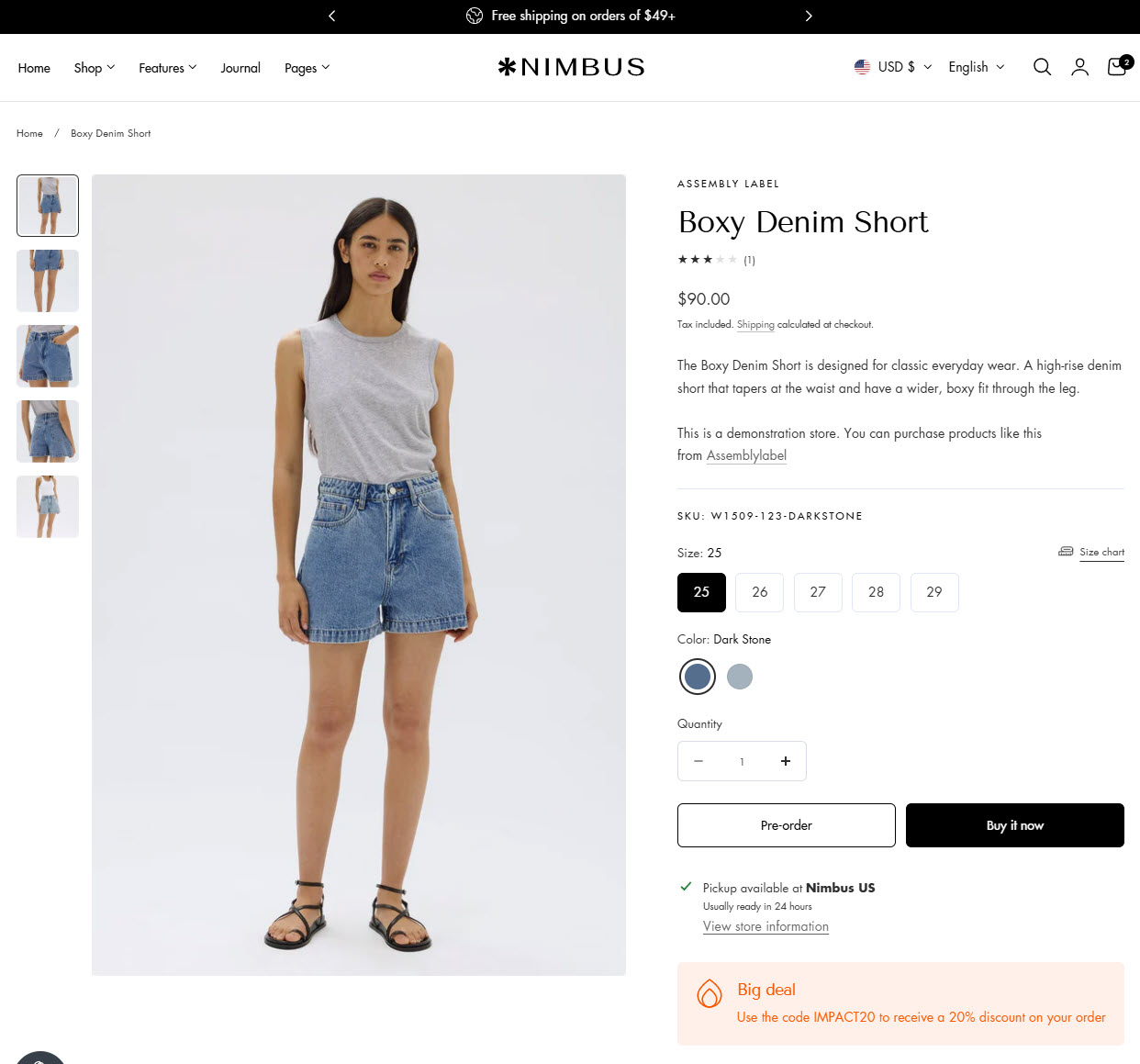
Pre-order replaces the **Add to cart** button with a **Pre-order** button, so customers can buy products before they are in stock. You can turn it on for a whole product, for a single variant, or automatically for out of stock variants.
## Step 1: Choose the pre-order mode
{% hint style="success" %}
**Steps:**
1. In the theme editor **(Customize)**, open **Theme settings > Extended**.
2. Choose an option in **Pre-order**.
3. **Save.**
{% endhint %}
* **Off** - Pre-order is turned off for all products.
* **Metafield only** (default) - Pre-order is shown for products or variants with the `ortheme.preorder` metafield set to **true**.
* **Metafield and out of stock variants** - Same as **Metafield only**, and pre-order is also shown automatically for out of stock variants that allow **Continue selling when out of stock**. See Step 4.
## Step 2: Create the pre-order metafield
Setting up a pre-order metafield is very simple and can be done right in your Shopify Admin.
{% hint style="success" %}
**Steps:**
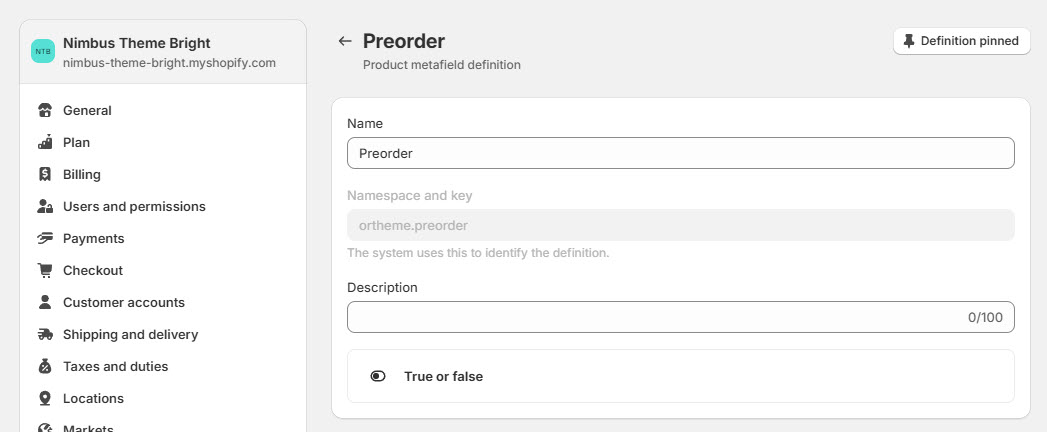
1. Go to **Settings > Metafields and metaobjects**.
2. Select **Products** to turn on pre-order for whole products, or **Variants** to turn it on for single variants. You can create both.
3. Click **Add definition**.
4. Enter the namespace and key: **ortheme.preorder**
5. Select the type **True or false** > **Save.**
{% endhint %}
## Step 3: Turn on pre-order for a product or variant
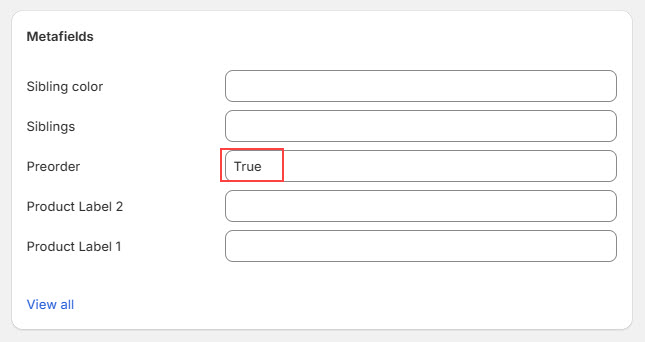
* **Whole product** - Open the product in **Products**, scroll to **Metafields** and set the pre-order metafield to **True**. All variants of the product show **Pre-order**.
* **Single variant** - Open the variant and set its pre-order metafield to **True**. Only this variant shows **Pre-order**. Other variants keep **Add to cart**.
{% hint style="warning" %}
Pre-order does not make a sold out variant available. If a variant is out of stock and **Continue selling when out of stock** is off, customers still see **Sold out**. To take pre-orders for products that are not in stock yet, turn on **Continue selling when out of stock** for those variants.
{% endhint %}
## Step 4 (optional): Pre-order for out of stock variants
With **Metafield and out of stock variants** selected in Step 1, a variant shows **Pre-order** automatically, without the metafield, when all of these are true:
* **Track quantity** is on
* **Continue selling when out of stock** is on
* The available quantity is **0 or less**
When you restock the variant, the button changes back to **Add to cart**.
## What customers see
* The **Pre-order** button is shown on the product page, the sticky add to cart bar, quick add and quick view, and the Bundle builder section. It updates when customers switch variants.
* Pre-order items get a **Pre-order: Yes** line in the cart, checkout and order details, so you can easily find pre-order items when fulfilling orders.
{% hint style="info" %}
Pre-order in the theme only changes the button and labels the item. Customers pay in full at checkout as usual. To charge later or take deposits, use a pre-order app.
{% endhint %}
{% hint style="info" %}
To change the **Pre-order** text, go to **Online Store > Themes > ... > Edit default theme content** and search for **Pre-order**.
{% endhint %}