> For the complete documentation index, see [llms.txt](https://oranthemes.gitbook.io/edge-theme/llms.txt). Markdown versions of documentation pages are available by appending `.md` to page URLs; this page is available as [Markdown](https://oranthemes.gitbook.io/edge-theme/global-sections/header.md).
# Header
The header is a user’s first touchpoint upon entering an online store, offering a streamlined overview of key elements. It prominently displays the brand logo, main navigation links, and essential tools like the search bar and cart icon, setting the tone for a smooth and engaging shopping experience.
{% hint style="success" %}
**Steps:**
1. Go to **Online Store > Themes > Customize.**
2. Choose **Header** section
3. Make necessary changes > **Save**.
{% endhint %}
### Settings
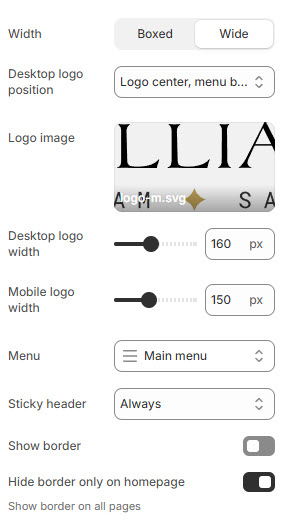
* **Width** - Width of the header -> 3 options : Boxed / Wide
* **Desktop logo position** - 5 Options
* Logo top left, menu left
* Logo center ,menu below
* Logo center, menu left
* Logo center, menu drawer
* Logo left, menu left
* Logo left, menu center
* **Logo image** - Upload your store's logo
* **Desktop logo width** - Customize the size of the logo on desktop screens
* **Mobile logo width** - Customize the size of the logo on mobile screens
* **Menu ( Navigation )** - To add, remove, or edit menus in your Shopify store, please refer to: [Editing menus](https://help.shopify.com/en/manual/online-store/menus-and-links/editing-menus)
{% hint style="info" %}
You can create [megamenu](/edge-theme/global-sections/megamenu.md)
{% endhint %}
* **Sticky header** - 3 Options => None, On scroll up, Always
* **Show border** - Show border bottom
* **Hide border only on homepage** ⇒ Show border on all pages
### Country/region selectort
{% hint style="info" %}
To display the currency selector, language selector, and account icon on the storefront, configure these settings with in the Shopify admin.
{% endhint %}
### Transparent header
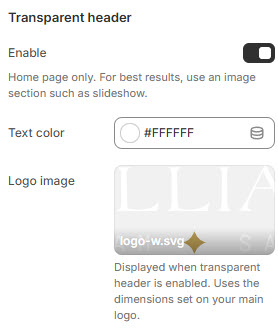
* **Enable** - Home page only. For best results, use an image section such as slideshow.
* **Text color**
* **Logo image** - Displayed when transparent header is enabled. Uses the dimensions set on your main logo.
### Mobile & Mobile menu
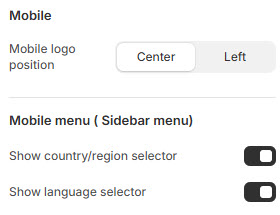
* **Mobile logo position** - Center / Left
* **Show country/region selector**
* **Show language selector**
### Spacing
* **Bottom margin** - Margin bottom of the header
`Section padding`
* **Padding top** - Padding top of the header
* **Padding bottom** - Padding bottom of the header